SUPPORTED MENU & DIALOG SCRIPTS
Here are the supported scripts for the menu and dialog preconfigured for the documents script. menu.lua which is located in the client folder of the documents script is fully editable, which means you can configure it with another menu/dialog script you might use if you don't use the supported ones.
| Dependency | Install | Description |
|---|---|---|
| QB-MENU/QB-INPUT | Optional if using other menu & input resources. | This normally is included in the QBCore install so check if you have before downloading. |
| OX-LIBS | Optional if using other menu & input resources. | https://github.com/overextended/ox_lib |
SUPPORTED INVENTORYS WITH METADATA
Here are the supported inventories which the document script uses, you can set the inventory you use in the config file, make sure you use one of these inventories before you buy the script.
| Supported Inventories | Links | Free/Paid |
|---|---|---|
| QB Inventory | https://github.com/qbcore-framework/qb-inventory | FREE |
| Quasar Inventory | https://www.quasar-store.com/package/4770732 | PAID |
| lj Inventory | https://github.com/loljoshie/lj-inventory | FREE |
| OX Inventory | https://github.com/overextended/ox_inventory | FREE |
If you use an inventory which supports metadata and want it supported with the script then open a ticket in the AP Scripts discord and we will look at adding the support to it.
Extract the Resource
Extract the ap-documents.zip file into your server’s resources folder. Ensure the folder is named ap-documents.
Import the SQL File
Locate the included .sql file and import it into your database using a tool such as phpMyAdmin or Adminer.
Configure the Script
Open the config.lua file and adjust it to match your server setup. Make sure to: Select the correct inventory system you are using Configure your menu/dialog system Review and update any additional settings as needed
Setup Your Documents
Go to shared/documents.lua and configure the documents you want available in-game. Add, edit, or remove document entries Customize titles, fields, and data structure
📌 Refer to the examples provided in the file for guidance.Restart Server
Restart your server to apply all changes.
SQL
Please note, there is an SQL file. You will need to import it in order for the script to run. You can open the respective SQL file, copy the queries and execute/run them in your database manually (my personal preferred way) or you can import the file.
CREATE TABLE IF NOT EXISTS `ap_documents` (
  `id` int(11) NOT NULL AUTO_INCREMENT,
  `documentid` varchar(50) DEFAULT NULL,
  `identifier` varchar(100) DEFAULT NULL,
  `document` longtext DEFAULT NULL,
  `name` varchar(100) DEFAULT NULL,
  `catergory` varchar(60) DEFAULT NULL,
  PRIMARY KEY (`id`)
) ENGINE=InnoDB DEFAULT CHARSET=utf8mb4;
DOCUMENT EXAMPLE
["Subpoena"] = { -- This will be the label displayed in the creation of a document, this can include spaces.
    type = "create", -- Do not edit this.
    restriction = {job = {enable = true, jobs = { -- To enable a jobs restriction set enable to true.
      ["police"] = "all", -- Set the job name as the key and the value set to "all" for all grades to make the document.
      ["ambulance"] = {0, 4, 5}, -- With this one the value can also be grade restricted by setting the grades in the table format with a comma for each grade.
    }}, gang = {enable = false, gangs = { -- To enable a gang restriction set enable to true.
      [""] = {0}, -- Same as the jobs above.
    }}, citizenid = {enable = false, id = { -- To enable a citizenid restriction set enable to true.
      "", "", -- inside the string add the citizenid you want to restrict this too.
    }}},
    title = "", -- Title of document.
    logo = "", -- Link for logo on the top left of the document.
    from = "", -- Who the document is from.
    description = "", -- description of the document.
    disclaimer = "", -- Disclaimer of the document.
    information = {
      { id = "i1", label = "", type = "text_input", placement = "", required = "true", value = "" },
      { id = "i2", label = "", type = "text_input", placement = "", required = "true", value = "" },
      { id = "i3", label = "", type = "text_input", placement = "", required = "true", value = "" },
      { id = "i4", label = "", type = "text_input", placement = "", required = "true", value = "" },
    },
    -- The id has to be in multiples of e.g(i1/i2/i3/i4/i5/i6/i7/i8/i9/i10) You can't have more then 10 input boxes.
    -- The label is the label of the input box.
    -- The type can only be "text_input", text input is a small box.
    -- Placement is the text inside the input box explaining what the person needs to input.
    -- Required is whether the the person is required to fill in the input box or not, use "true" or "false".
    -- The value needs to be an empty string do not add anything in there.
    extended_information = {
      { id = "e1", label = "", type = "text_input", placement = "", required = "true", value = "" },
      { id = "e2", label = "", type = "text_input", placement = "", required = "true", value = "" },
      { id = "e3", label = "", type = "text_input", placement = "", required = "true", value = "" },
      { id = "e4", label = "", type = "text_area", placement = "", required = "true", value = "" },
      { id = "e5", label = "", type = "text_area", placement = "", required = "true", value = "" },
    },
    -- The id has to be in multiples of e.g(e1/e2/e3/e4/e5/e6/e7/e8/e9/e10) You can't have more then 10 input boxes.
    -- The label is the label of the input box.
    -- The type can be either "text_input" or "text_area", text input is a small box and text area is a bigger box.
    -- Placement is the text inside the input box explaining what the person needs to input.
    -- Required is whether the the person is required to fill in the input box or not, use "true" or "false".
    -- The value needs to be an empty string do not add anything in there.
    terms_and_conditions = {
      {label = ""}, -- You can add as many different types of labels as you like, for example i have added two.
      {label = ""}, -- You can add as many different types of labels as you like, for example i have added two.
    },
    sign = "" -- Do not edit this.
},
INVENTORY ADDITIONS
Add These to your QB inventory
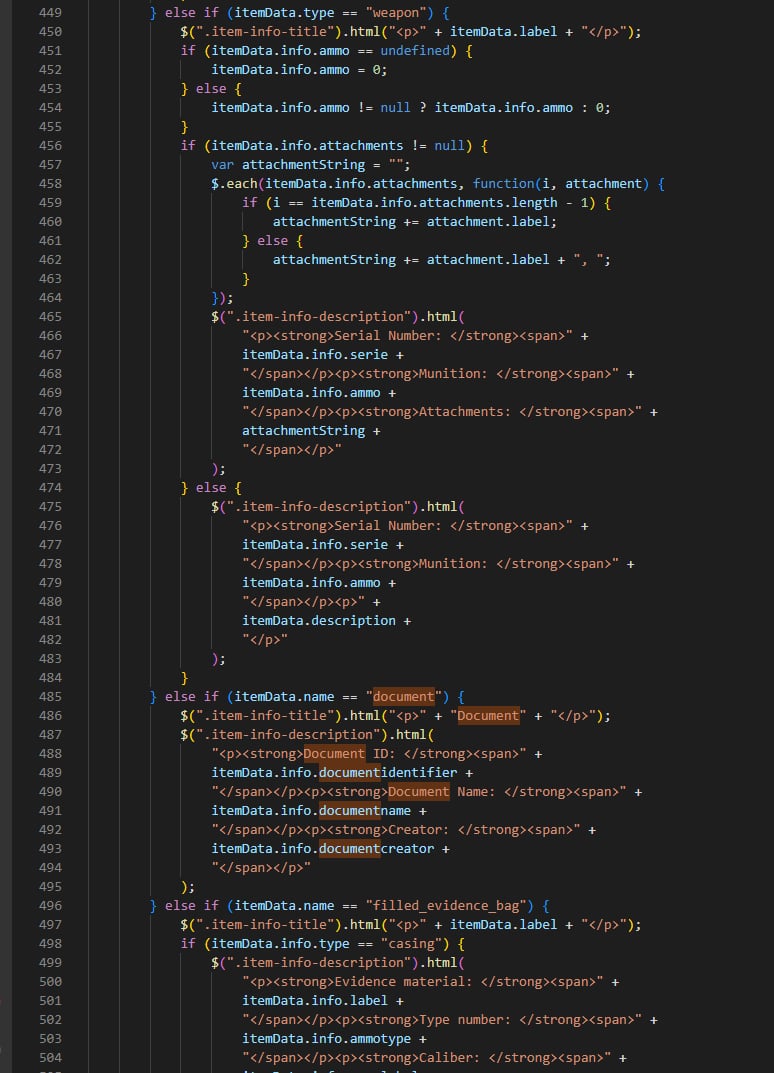
qb-inventory\html\js\app.js - Add the example below in the correct place like the example image. Make sure to set QB to true in the ap-documents config.
} else if (itemData.name == "document") {
    $(".item-info-title").html("<p>" + "Document" + "</p>");
    $(".item-info-description").html(
        "<p><strong>Document ID: </strong><span>" +
        itemData.info.documentidentifier +
        "</span></p><p><strong>Document Name: </strong><span>" +
        itemData.info.documentname +
        "</span></p><p><strong>Creator: </strong><span>" +
        itemData.info.documentcreator +
        "</span></p>"
    );