ESX DEPENDENCIES
| Dependency | Install | Description |
|---|---|---|
| OX-Target | Optional if using other target system stated. | For use of using 3rd eye features. |
| Q-Target | Optional if using other target system stated. | For use of using 3rd eye features. |
| OX Libs/NH Context | Required | This normally is included in the QBCore install so check if you have before downloading. |
| OX Libs/NH Dialog | Required | This normally is included in the QBCore install so check if you have before downloading. |
| ESX Society | Required | This normally is included in the QBCore install so check if you have before downloading. |
STEP BY STEP
Extract the Resource
Extract the ap-government.zip file into your server’s resources folder. Ensure the folder is named ap-government.
Install & Ensure Dependencies
Install all required dependencies for the resource and make sure they are started before ap-government.
ensure ap-governmentImport the SQL File
Locate the included .sql file and import it into your database using a tool such as phpMyAdmin or Adminer.
Configure the Script
Open the config.lua file and set it up to match your server. Make sure to: Enable the correct target system you are using (e.g. ox_target / q-target) If you are using a custom target system via target.lua, ensure the default target options in config.lua are set to false Adjust any additional settings as needed
Restart Server
Restart your server to apply all changes.
SQL
Please note, there is an SQL file. You will need to import it in order for the script to run. You can open the respective SQL file, copy the queries and execute/run them in your database manually (my personal preferred way) or you can import the file.
CREATE TABLE IF NOT EXISTS `ap_appointments` (
  `id` int(11) NOT NULL AUTO_INCREMENT,
  `identifier` varchar(46) DEFAULT NULL,
  `name` tinytext DEFAULT NULL,
  `appData` longtext DEFAULT NULL,
  `type` varchar(60) DEFAULT NULL,
  `state` int(11) DEFAULT 0,
  KEY `id` (`id`)
) ENGINE=InnoDB DEFAULT CHARSET=utf8mb4;

CREATE TABLE IF NOT EXISTS `ap_dlcsettings` (
  `script` varchar(60) DEFAULT 'SCRIPT',
  `settings` longtext DEFAULT '{}',
  `other` longtext DEFAULT '{}',
  `id_storage` longtext NOT NULL DEFAULT '[]'
) ENGINE=InnoDB DEFAULT CHARSET=utf8;

INSERT INTO `ap_dlcsettings` (`script`, `settings`, `other`, `id_storage`) VALUES
('ap_voting', '{"funds":10000,"voteState":0,"currentType":0}', '{"Item":0.7,"Vehicle":0.2,"Business":0.15,"Housing":0.2,"Income":0.15}', '[]');

CREATE TABLE IF NOT EXISTS `ap_tax` (
  `business` varchar(60) DEFAULT 'JOB NAME',
  `society` varchar(60) DEFAULT 'SOCIETY',
  `label` varchar(60) DEFAULT 'JOB LABEL',
  `amount_owed` int(11) DEFAULT 0,
  `total_tax_paid` int(11) DEFAULT 0,
  `owner` varchar(46) DEFAULT NULL,
  `base_tax` int(11) DEFAULT NULL,
  `grants` longtext DEFAULT 'nil'
) ENGINE=InnoDB DEFAULT CHARSET=utf8;

CREATE TABLE IF NOT EXISTS `ap_voting` (
  `identifier` varchar(46) DEFAULT NULL,
  `name` varchar(70) DEFAULT NULL,
  `age` text DEFAULT NULL,
  `shortDescription` mediumtext DEFAULT NULL,
  `whyDoYouWantToBeACandidate` longtext DEFAULT NULL,
  `WhatYoullBringToTheCity` longtext DEFAULT NULL,
  `denied` longtext DEFAULT 'N/A',
  `votes` int(10) DEFAULT NULL,
  `state` int(10) DEFAULT NULL
) ENGINE=InnoDB DEFAULT CHARSET=utf8;
SOCIETY CHANGES
Open esx society folder and edit fxmanifest.lua
-- add this at the bottem of the manifest.

server_exports {
  'GetSociety'
}
CONFIGURATION
CLICK THE TABS TO SEE OPTIONS
This example shows how to add the trigger to es_extended\server\paycheck.lua for income tax support.
TriggerEvent('ap-government:server:systemTax', xPlayer.source, "Player", salary)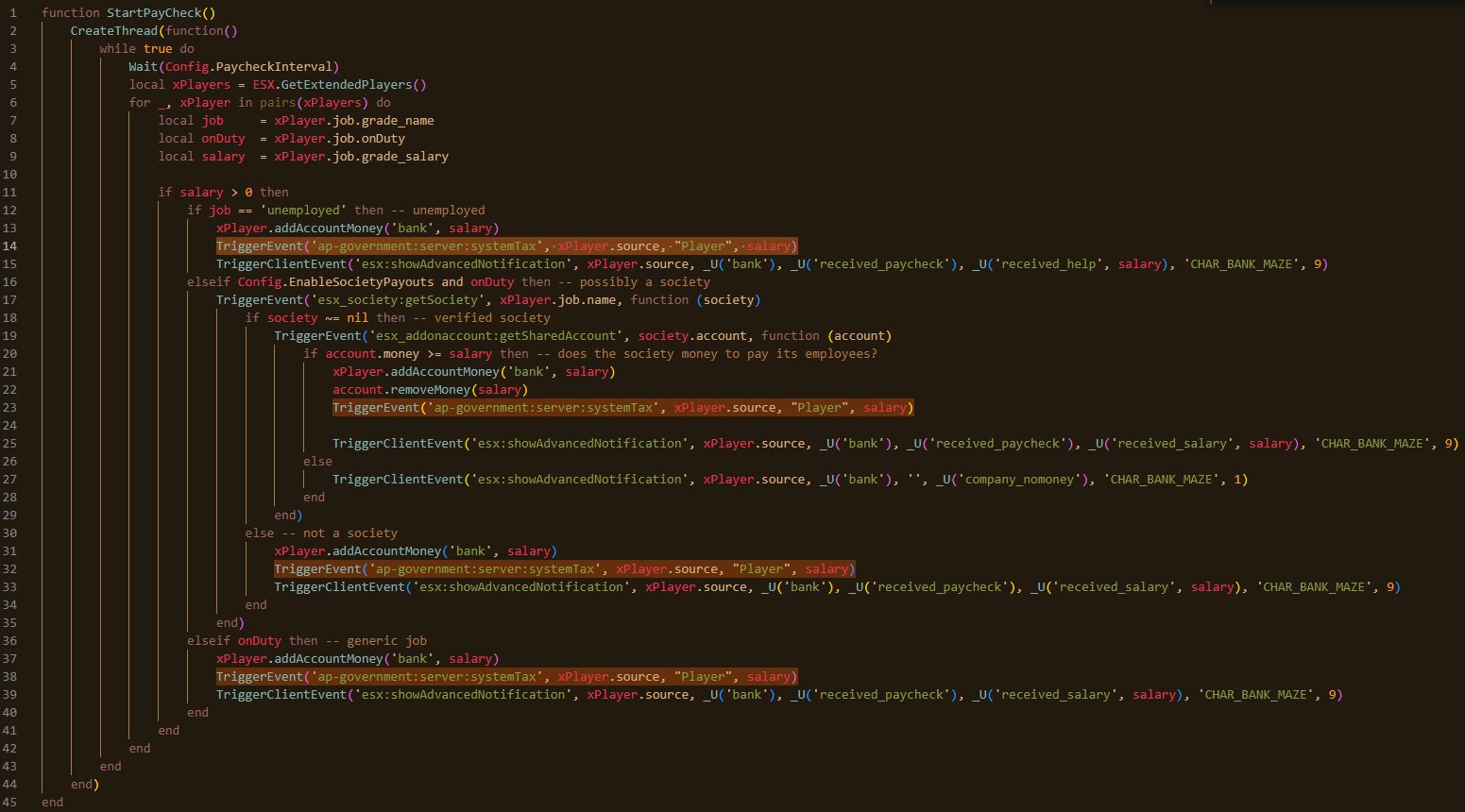
EXPORTS
These are available exports in the resource - use them as you please and find necessary.
This export can be used in your scripts that you want to include tax on in which you have added in the config.
exports['ap-government']:chargeCityTax(source, label, amount)
-- source; source of the player the tax will be deducted from.
-- label; this is the key of the type of tax you have added in the Config.Tax.MayorControl.
-- amount: this would be the amount of which the item/housing/vehicle cost.